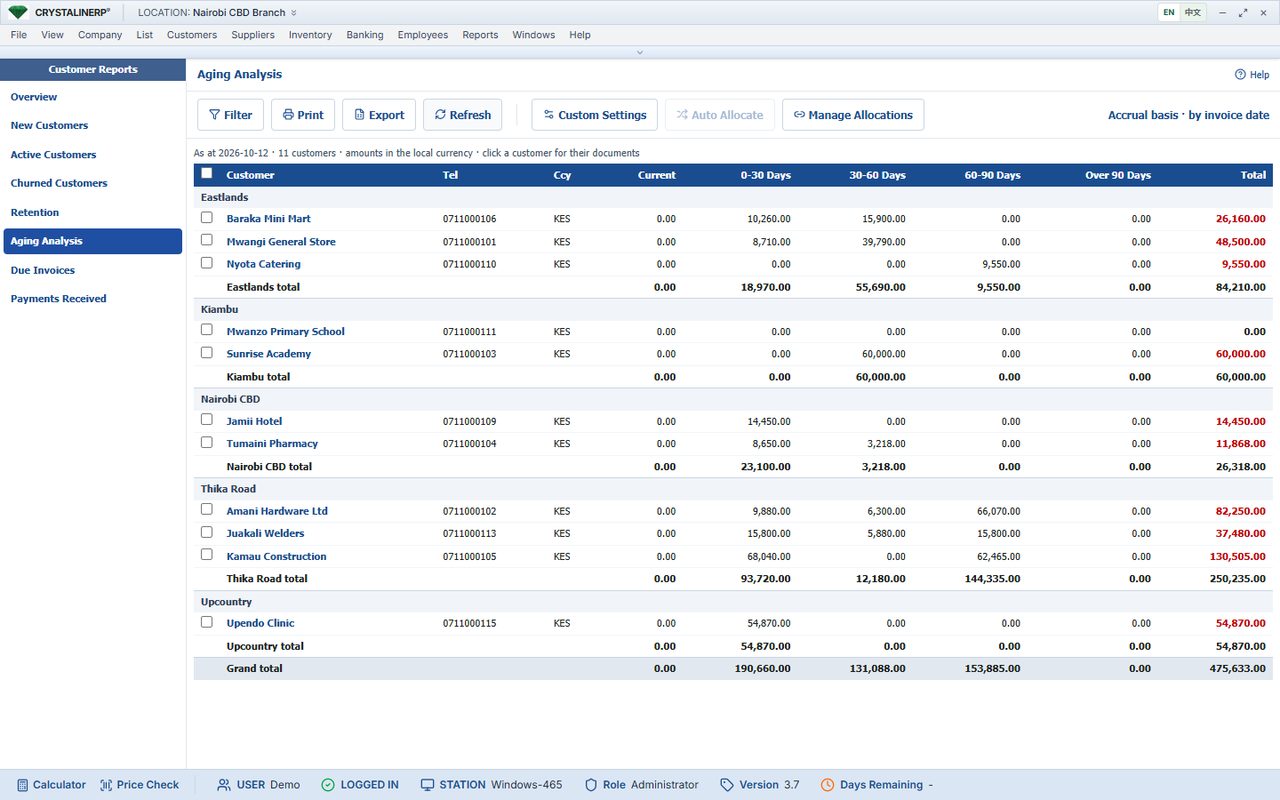
What this screen shows
The customer ageing screen helps identify outstanding balances and prioritise follow-up.
Reproduce the workflow in a demo
- Choose a customer with several invoices and a partial receipt.
- Compare the balance screen with the ageing report.
- Allocate a payment and review how the outstanding position changes.
What to verify beyond the screenshot
Ageing depends on the chosen date and terms. Ask how unapplied receipts and disputed amounts are presented before using the report for collection targets.
Record your acceptance decision
Use your own business example and retain the expected result, actual result and any open issue. Ask the team to confirm configuration work in the quotation. No saving, growth or implementation outcome is claimed by this walkthrough.